
Completing the work does not automatically mean getting paid.
A service business can finish a:
- plumbing repair;
- electrical installation;
- cleaning job;
- landscaping project;
- HVAC service;
- garage-door repair;
and still spend days or weeks waiting for payment.
The problem becomes worse as the business grows.
Ten unpaid invoices are manageable manually.
One hundred invoices across multiple technicians, customers and payment terms are not.
That is why learning how to automate invoice reminders for a service business can make a major difference to both administration and cash flow.
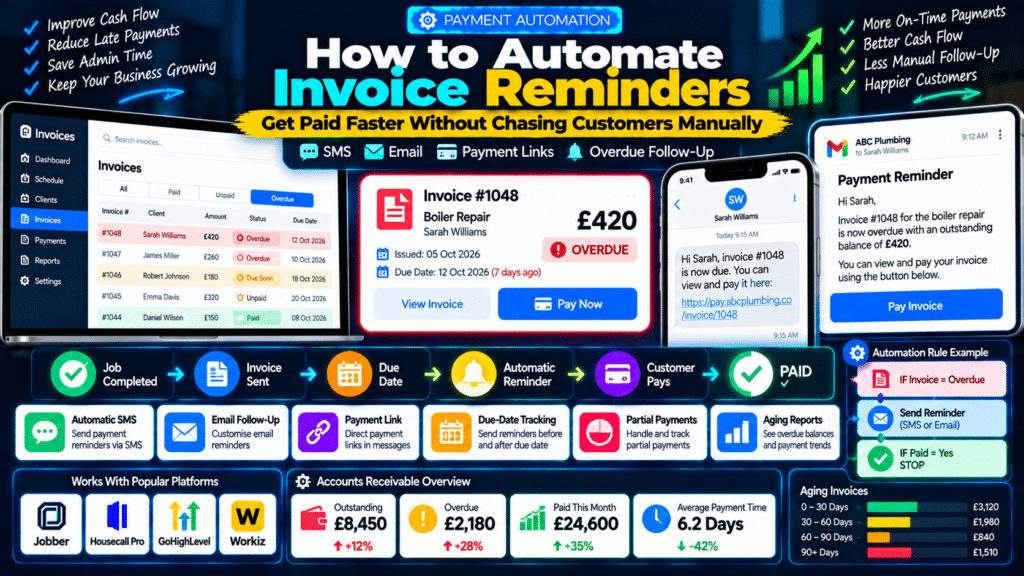
A basic payment workflow might look like:
Job Completed
↓
Invoice Sent
↓
Due Date Approaching
↓
Automatic Reminder
↓
Invoice Becomes Overdue
↓
Second Reminder
↓
Payment Received
↓
Automation Stops
The goal is not to aggressively chase customers.
It is to create a consistent system so unpaid invoices do not disappear inside:
- email inboxes;
- spreadsheets;
- staff to-do lists.
What Is Invoice Reminder Automation?
Invoice reminder automation uses software to send or trigger follow-up actions based on the status of an invoice.
For example:
Invoice Status = Overdue
↓
Send customer:
SMS or Email Reminder
The automation can also:
- alert office staff;
- create follow-up tasks;
- update CRM records;
- trigger escalation for older debts;
- stop automatically after payment.
More advanced systems can use:
- invoice amount;
- customer tags;
- payment status;
- due date;
- amount remaining
to determine what happens next.
Invoice Creation Reminders vs Payment Reminders
These two are often confused.
Invoice Creation Reminder
Reminds your team that a completed job still needs an invoice.
For example:
Job Completed → Remind Office to Create Invoice
Invoice Payment Reminder
Contacts the customer because an invoice has:
- not yet been paid;
- reached its due date;
- become overdue.
For example:
Invoice Overdue → Send Customer Reminder
Jobber supports both concepts separately. Its invoice reminders can prompt staff to create an invoice after work is completed, while its invoice follow-up automation can contact customers about past-due invoices (source: Jobber Help Center).
That distinction matters when designing your automation.
Why Invoice Follow-Up Matters
A late invoice can cause more problems than the outstanding balance itself.
It can affect your ability to pay for:
- wages;
- fuel;
- materials;
- software;
- subcontractors;
- advertising;
- stock.
The longer invoices remain unpaid, the more administrative effort may also be required.
A consistent follow-up system creates a predictable process.
Instead of:
“Did anybody remember to chase invoice 1048?”
the business knows the system will handle normal reminders automatically.
A Practical Invoice Reminder Sequence
For many service businesses, a reasonable starting workflow is:
When the Invoice Is Sent
Send the invoice immediately.
Before the Due Date
Optional friendly reminder.
1 Day After Due Date
Send first overdue reminder.
7 Days Overdue
Send second reminder.
14–30 Days Overdue
Create a manual follow-up task.
Older Debt
Escalate according to your business’s payment policy.
The exact timing should depend on:
- customer type;
- invoice value;
- payment terms;
- service type.
A $75 residential invoice should not necessarily use the same escalation process as a $25,000 commercial project.
Step 1: Define Payment Terms Clearly
Automation works best when every invoice has a clear due date.
Possible payment terms include:
- due on receipt;
- Net 7;
- Net 14;
- Net 30.
Without a clear due date, it is harder for both:
- software;
- customer
to know when payment is actually late.
Workiz, for example, supports account-level and client-specific payment terms, while invoices move into an overdue status once they pass the relevant due date unpaid (source: Workiz Help Center).
Step 2: Make Payment Easy
Do not automate reminders while making payment difficult.
The ideal reminder should provide a clear way to pay.
For example:
Hi Sarah, invoice #1048 is now overdue. You can view and pay it here: [payment link]
That is much better than:
Please settle your outstanding account.
The customer should not need to:
- call;
- ask for bank details;
- search through old emails.
Option 1: Automate Invoice Follow-Up With Jobber
Jobber provides dedicated invoice follow-up automations.
These can automatically remind clients that an invoice is past due by:
- email;
- text.
The follow-up uses the same delivery method as the original invoice. So if the invoice was originally sent by text, the automatic follow-up is also sent by text (source: Jobber Help Center).
Jobber Invoice Follow-Up Availability
Jobber’s current documentation says invoice follow-ups are available from the Connect plan and above (source: Jobber Help Center).
Jobber currently supports up to two invoice follow-up automations for past-due invoices.
The business can customize:
- how many days after the due date the reminder is sent;
- message text;
- automation title.
The delay can currently be set up to 90 days after the due date (source: Jobber Help Center).
Example Jobber Workflow
Invoice Sent
↓
Invoice reaches due date.
↓
3 Days Overdue
First automatic follow-up.
↓
10 Days Overdue
Second automatic follow-up.
↓
Payment received.
↓
No additional reminder.
Jobber Follow-Up Example
Hi Sarah, just a reminder that invoice #1048 is now overdue. You can view the invoice and complete payment using the link provided. Please let us know if you have any questions.
Keep the tone:
- professional;
- clear;
- neutral.
Jobber Follow-Up Timing
Jobber says automated invoice follow-ups are sent shortly after 8 AM local time on the day they are scheduled (source: Jobber Help Center).
That is useful because it avoids sending routine payment reminders in the middle of the night.
Invoice Reminders for Your Team in Jobber
Jobber also has internal invoice reminders.
These are generated based on the invoicing schedule of the job.
For recurring jobs, options currently include:
- after each visit;
- once when the job is completed;
- monthly on the last day;
- custom schedule (source: Jobber Help Center).
When the reminder becomes due, the job moves into:
Requires Invoicing
status.
This helps ensure the business actually generates the invoice before worrying about collecting it.
Example Complete Jobber Workflow
Technician Completes Job
↓
Job Requires Invoicing
↓
Office creates invoice.
↓
Invoice sent.
↓
Invoice becomes overdue.
↓
Automatic follow-up #1.
↓
Automatic follow-up #2.
↓
Payment received.
This covers both sides of the process:
creating invoices
and:
collecting invoices.
Option 2: Automate Invoice Reminders With Housecall Pro
Housecall Pro also provides automatic invoice reminders.
Its current system can notify customers about overdue invoices, and businesses can control the reminder frequency from:
Settings → Notifications → Customer → Invoices. Housecall Pro Help Center
Housecall Pro Reminder Frequency
Housecall Pro lets businesses customize how often invoice reminders are sent.
Its current reminder settings allow multiple frequency options rather than forcing one schedule (source: Housecall Pro Help Center).
This lets a company design a sequence that fits its payment terms.
For example:
Invoice Due
↓
3 Days Late
Reminder.
↓
10 Days Late
Reminder.
↓
30 Days Late
Manual review.
Customer Notification Settings
Housecall Pro’s centralized customer notification settings now control messages related to:
- jobs;
- estimates;
- invoices;
- reviews;
- online bookings;
- service plans.
Businesses can choose enabled channels and customize messages for supported notifications (source: Housecall Pro Help Center).
That makes payment reminders part of a broader communication system rather than a standalone tool.
Housecall Pro Auto Invoicing
Housecall Pro also supports Auto Invoicing.
This feature can automatically resend unpaid invoices on schedules such as:
- daily;
- weekly;
- monthly;
- annually (source: Housecall Pro Help Center).
That can be useful for customers with:
- recurring services;
- ongoing unpaid balances.
One important limitation is that Housecall Pro says Auto Invoicing currently does not support Progress Invoices (source: Housecall Pro Help Center).
Aging Invoice Reporting
Housecall Pro has also expanded its invoicing system in 2026 with features including:
- invoice filtering;
- due-date visibility;
- aging invoice reporting in beta;
- improved reminder controls;
- customer exclusions from reminders (source: Housecall Pro Help Center).
This is valuable because not every unpaid invoice should necessarily receive the same automation.
For example, you may want to exclude:
- disputed invoices;
- special commercial accounts;
- customers on negotiated payment plans.
Housecall Pro Example
Boiler Repair Completed
↓
Invoice sent.
↓
Customer does not pay.
↓
Automatic overdue reminder.
↓
Second reminder according to schedule.
↓
Office sees unpaid invoice in reporting.
↓
Manual intervention if necessary.
Option 3: Automate Invoice Reminders With GoHighLevel
GoHighLevel provides one of the most flexible approaches because invoice reminders can be configured either directly in invoice settings or through more advanced workflows.
HighLevel allows businesses to create multiple automatic invoice reminders with their own:
- reminder name;
- email and SMS templates;
- timing;
- frequency;
- maximum number of reminders (source: HighLevel Support Portal).
HighLevel Reminder Timing
A reminder can be configured relative to:
- the invoice due date;
- the date the invoice was sent.
For example:
3 days before due date
or:
2 days after due date. HighLevel Support Portal
This allows both:
pre-due reminders
and:
overdue reminders.
Example HighLevel Sequence
Invoice Sent
↓
2 Days Before Due Date
Friendly reminder.
↓
Invoice Due Date
No message.
↓
3 Days Overdue
SMS reminder.
↓
10 Days Overdue
Email reminder.
↓
20 Days Overdue
Create staff follow-up task.
Invoice Workflow Trigger
HighLevel also has a dedicated Invoice workflow trigger.
It can trigger automation based on invoice states such as:
- sent;
- paid;
- partially paid;
- viewed;
- void;
- overdue (source: HighLevel Support Portal).
That makes more advanced logic possible.
Example Status-Based Workflow
Invoice Status = Overdue
↓
Send SMS.
↓
Wait five days.
↓
Check:
Invoice Status = Paid?
Yes
Stop.
No
Notify account manager.
Partial Payments
One useful HighLevel capability is triggering based on:
Partially Paid
status (source: HighLevel Support Portal).
That allows a different message.
For example:
Thanks for your payment. A remaining balance of $450 is still due on invoice #1048.
That is more accurate than sending a generic:
Your invoice is unpaid.
Viewed Invoice Automation
HighLevel can also trigger when an invoice is:
Viewed. HighLevel Support Portal
This can be useful for larger invoices.
Imagine:
$12,000 Invoice Sent
↓
Customer views it.
↓
No payment after three days.
↓
Account manager receives task.
That gives the team useful context before following up.
Important HighLevel Limitation
HighLevel states that automatic reminders generally apply only to invoices created after the reminder configuration has been enabled.
Invoices that were already overdue before activation may need manual handling (source: HighLevel Support Portal).
That is important when first launching the automation.
Do not assume enabling the feature will automatically chase every historical invoice.
Option 4: Automate Invoice Reminders With Workiz
Workiz also supports overdue invoice follow-up through its Automations system.
Its current documentation says businesses can create targeted automatic emails to clients after an invoice has been overdue for a defined period (source: Workiz Help Center).
Workiz also lets users manually send payment reminders from the invoice dashboard when needed (source: Workiz Help Center).
Workiz Invoice Statuses
Workiz tracks invoice states including:
- Due;
- Overdue;
- Paid.
An invoice becomes overdue once it has passed the configured payment terms without being fully paid (source: Workiz Help Center).
That creates a useful automation trigger.
Example Workiz Workflow
Invoice Sent
↓
Payment terms = Net 14.
↓
Day 14 passes.
↓
Invoice becomes overdue.
↓
Automated client follow-up.
↓
Invoice remains unpaid.
↓
Staff review through invoice dashboard.
Workiz Automation Conditions
Workiz Automations can use conditions to control when rules run.
For example, automation rules can consider criteria such as:
- client tag;
- job type;
- whether an invoice still has an amount due (source: Workiz Help Center).
This allows more intelligent workflows.
For example:
Residential Customers
Reminder after three days.
Commercial Account
Reminder after seven days.
Customer on Payment Plan
Skip normal reminder.
That is much better than treating every customer identically.
Workiz Aging Invoices Report
Workiz also provides an Aging Invoices report.
It categorizes outstanding invoices into periods such as:
- under 30 days overdue;
- 30–60 days;
- 60–90 days;
- over 90 days (source: Workiz Help Center).
Each entry can show:
- invoice number;
- customer;
- amount;
- remaining balance;
- due date;
- days late.
That is useful when deciding which unpaid invoices need human attention.
Automatically Create the Invoice First
Workiz can also automatically create an invoice when a job reaches the chosen completed status (source: Workiz Help Center).
That means the broader workflow can become:
Job Done
↓
Invoice Automatically Created
↓
Invoice Sent
↓
Payment Due
↓
Reminder
This reduces another manual step.
Which Platform Is Best for Invoice Reminder Automation?
The best tool is usually the one already managing your invoices.
Choose Jobber When
You already use Jobber for:
- jobs;
- invoicing;
- payments.
Its built-in invoice follow-ups are easy to configure and tightly connected to job completion (source: Jobber Help Center).
Choose Housecall Pro When
You want:
- native invoice reminders;
- auto invoicing;
- customer notification settings;
- aging invoice visibility.
Choose GoHighLevel When
You want the most flexible workflow logic around:
- due dates;
- SMS;
- email;
- invoice states;
- CRM tasks.
Choose Workiz When
You want invoice automation connected to:
- field-service operations;
- jobs;
- custom automation conditions;
- aging-invoice reporting.
SMS vs Email Invoice Reminders
Both can work.
SMS
Useful when:
- invoices are small;
- residential customers dominate;
- fast responses matter.
Example:
Hi Sarah, just a reminder that invoice #1048 is now overdue. You can view and pay it here: [link]. Thank you.
Better when:
- invoices are larger;
- commercial customers are involved;
- the customer needs more context.
A useful email could include:
Subject: Reminder: Invoice #1048
Hi Sarah, this is a friendly reminder that invoice #1048 for the boiler repair is now overdue. The outstanding balance is £420. You can view and pay the invoice using the link below. Please contact us if you have any questions.
Use Both Carefully
For higher-value invoices, you might use:
Email first
then:
SMS reminder
if payment still has not arrived.
Do not flood customers through every channel simultaneously.
What Should an Invoice Reminder Say?
The message should include:
- customer name;
- invoice number;
- amount where appropriate;
- due date or overdue status;
- payment link;
- contact option.
First Reminder Example
Hi Sarah, just a friendly reminder that invoice #1048 is now due. You can view and pay it here: [link]. Thank you.
Overdue Reminder Example
Hi Sarah, invoice #1048 is now 7 days overdue with an outstanding balance of £420. You can make payment here: [link]. Please contact us if there is an issue with the invoice.
Final Manual Follow-Up Example
Hi Sarah, we’re following up regarding invoice #1048, which remains outstanding. Please let us know if there is any issue preventing payment so we can resolve it.
Keep communication:
- factual;
- professional;
- non-threatening.
Do Not Start Aggressively
Avoid beginning with:
FINAL DEMAND. PAY IMMEDIATELY.
when an invoice is one day late.
Customers may have:
- missed the email;
- been on holiday;
- had a card issue;
- forgotten.
Start with a friendly reminder.
Escalate gradually.
Use Different Sequences for Different Customers
A residential customer may use:
Due now
and receive a reminder quickly.
A commercial client may legitimately operate on:
Net 30
or:
Net 60.
Do not treat a commercial invoice as overdue before the agreed payment term has passed.
Use Different Sequences by Invoice Value
You can also change automation based on amount.
Under $500
Automatic reminders.
$500–$5,000
Automatic reminders + office task.
Over $5,000
Automatic reminder + account-manager notification.
HighLevel’s invoice trigger, for example, can filter workflows based on invoice amount ranges (source: HighLevel Support Portal).
Stop Reminders Immediately After Payment
This is critical.
The worst payment automation experience is:
Customer Pays
↓
Customer receives:
Your invoice is overdue.
A good system should stop reminder workflows as soon as the invoice reaches:
Paid.
Status-aware tools such as HighLevel can trigger or terminate workflows based on invoice status changes (source: HighLevel Support Portal).
Handle Partial Payments Properly
If the customer pays part of an invoice, the message should reflect the:
remaining balance.
Do not continue sending the original full amount.
This is particularly useful for:
- deposits;
- staged work;
- large projects.
Do Not Automate Disputed Invoices Blindly
If a customer says:
This invoice is incorrect.
stop the normal reminder sequence while the issue is being investigated.
Useful exclusions include:
- dispute tag;
- payment plan;
- legal review;
- management hold.
Housecall Pro’s 2026 invoicing updates include better ability to exclude selected customers from invoice reminders (source: Housecall Pro Help Center).
Workiz automation conditions can similarly restrict which customers or invoices receive specific rules (source: Workiz Help Center).
Add Internal Escalation
Automation should eventually hand the invoice to a person.
Example:
1 Day Overdue
Automatic SMS.
↓
7 Days Overdue
Automatic email.
↓
14 Days Overdue
Notify office manager.
↓
30 Days Overdue
Create manual collection task.
The system handles repetition.
Humans handle exceptions.
Use Aging Reports
An aging report helps separate:
newly overdue
from:
seriously overdue.
A useful structure is:
0–30 Days
Normal follow-up.
30–60 Days
Manager review.
60–90 Days
Higher-priority collection.
90+ Days
Manual escalation according to your contracts and applicable law.
Workiz currently organizes its Aging Invoices report into these types of aging ranges (source: Workiz Help Center).
Invoice Automation for Recurring Services
Recurring services benefit heavily from automation.
For example:
Monthly Commercial Cleaning
↓
Job completed.
↓
Invoice generated.
↓
Invoice sent.
↓
Payment due.
↓
Reminder automatically sent if needed.
This can remove a large amount of repetitive administration from:
- cleaning;
- maintenance;
- pest control;
- landscaping;
- pool service.
Example Workflow for a Plumber
Boiler Repair Completed
↓
Invoice sent for £420.
↓
Due after 7 days.
↓
Day 8:
Friendly SMS reminder.
↓
Day 15:
Email reminder.
↓
Still unpaid:
Office task created.
Example for a Cleaning Business
Monthly Office Cleaning
↓
Invoice generated monthly.
↓
Customer has Net 30 terms.
↓
Day 25:
Optional upcoming payment reminder.
↓
Day 31:
Overdue notification.
↓
Payment received.
↓
Workflow stops.
Example for an Electrician
EV Charger Installation
↓
£2,500 invoice sent.
↓
Customer pays deposit earlier.
↓
Remaining balance due on completion.
↓
Reminder refers only to remaining balance.
↓
If still unpaid after seven days:
Office manager notified.
Example for a Garage-Door Company
Same-Day Repair Completed
↓
Invoice created automatically.
↓
Payment link sent.
↓
No payment after two days.
↓
Workiz automation sends follow-up.
↓
Invoice appears in overdue reporting if still unpaid.
Track Invoice Automation Performance
Measure more than:
how many reminders were sent.
Track:
Average Days to Payment
How long after invoicing does payment arrive?
Overdue Invoice Percentage
How much of your receivables are overdue?
Reminder-to-Payment Conversion
How many reminders result in payment?
Outstanding Balance
How much money remains unpaid?
Aging
How much debt is:
- under 30 days;
- 30–60;
- 60–90;
- 90+?
Manual Collection Work
How many invoices still require staff intervention?
The goal is to reduce both:
late payments
and:
admin time.
Common Invoice Automation Mistakes
No Clear Due Date
Automation cannot determine lateness properly.
Too Many Messages
Repeated daily payment texts can damage the customer relationship.
Reminding Paid Customers
Always use payment-status logic.
Ignoring Partial Payments
Use the correct remaining balance.
No Payment Link
Make payment easy.
Aggressive First Message
Start professionally.
No Manual Escalation
Automation should not chase a disputed invoice forever.
One Workflow for Every Customer
Commercial and residential accounts may need different rules.
Forgetting Historical Invoices
Some systems only apply newly enabled reminder settings to future invoices.
HighLevel, for example, says previously overdue invoices may require manual action after the reminder system is first enabled (source: HighLevel Support Portal).
Invoice Reminder Automation Checklist
Before activating the workflow, confirm:
- payment terms are correct;
- every invoice has a due date;
- payment links work;
- reminder wording is professional;
- paid invoices stop automatically;
- partial payments are handled correctly;
- disputed invoices can be excluded;
- reminder timing is reasonable;
- high-value invoices have human escalation;
- staff can view overdue balances;
- recurring customers use the correct terms;
- old unpaid invoices have been reviewed manually.
Related guides
- How to Automate Appointment Reminders for a Service Business in 2026
- How to Automate Review Requests for a Service Business in 2026
- How to Automate Quote Follow-Up for a Service Business in 2026
- Tools, Software and Automation for Trades: Start Here
Frequently Asked Questions
What is an automated invoice reminder?
An automated invoice reminder is an email, SMS or internal notification triggered automatically when an invoice reaches a defined point such as:
- approaching its due date;
- becoming overdue;
- remaining unpaid for a certain period.
Does Jobber automatically send overdue invoice reminders?
Yes. Jobber’s invoice follow-up automation can send email or text reminders to customers with past-due invoices. Jobber currently includes invoice follow-ups on Connect and higher plans (source: Jobber Help Center).
How many automatic invoice reminders can Jobber send?
Jobber currently provides two invoice follow-up automations for invoices in past-due status (source: Jobber Help Center).
Does Housecall Pro have automatic invoice reminders?
Yes. Housecall Pro provides automatic invoice reminder settings that businesses can enable and configure under customer notifications (source: Housecall Pro Help Center).
Can Housecall Pro automatically resend unpaid invoices?
Yes. Housecall Pro’s Auto Invoicing feature can resend open unpaid invoices according to schedules such as daily, weekly, monthly or annually, although it currently does not support Progress Invoices (source: Housecall Pro Help Center).
Can GoHighLevel automate invoice reminders?
Yes. HighLevel lets businesses create multiple reminders based on the invoice sent date or due date and send them using email and SMS templates (source: HighLevel Support Portal).
Can HighLevel trigger workflows when an invoice becomes overdue?
Yes. HighLevel’s Invoice workflow trigger supports several invoice statuses including sent, paid, partially paid, viewed, void and overdue (source: HighLevel Support Portal).
Can Workiz automatically remind customers about overdue invoices?
Yes. Workiz Automations can follow up with customers on overdue invoices after defined periods, while its invoice dashboard also supports manual overdue reminders (source: Workiz Help Center).
Does Workiz have an aging invoice report?
Yes. Its Aging Invoices report groups overdue balances into periods including under 30, 30–60, 60–90 and more than 90 days (source: Workiz Help Center).
How many invoice reminders should I send?
For many service businesses, two automatic reminders followed by human review is a reasonable starting point.
The exact sequence should depend on:
- invoice value;
- customer type;
- agreed payment terms.
Should I remind customers before an invoice is due?
For longer payment terms, a friendly reminder before the due date can be useful.
For small invoices due immediately, this may be unnecessary.
Conclusion
Learning how to automate invoice reminders for a service business is one of the simplest ways to build a more consistent payment process.
A strong workflow can look like:
Job Completed
↓
Invoice Created
↓
Invoice Sent
↓
Payment Due
↓
Automatic Reminder
↓
Payment Received
The software handles the repetitive follow-up.
Your staff only step in when something unusual happens.
Jobber is particularly convenient for businesses already running jobs and invoices inside Jobber. Its invoice follow-ups can automatically contact customers with overdue invoices by email or text, while internal invoice reminders help staff make sure completed work actually gets billed (source: Jobber Help Center).
Housecall Pro combines overdue reminders with broader customer-notification controls and Auto Invoicing, giving home-service businesses multiple ways to stay on top of unpaid balances (source: Housecall Pro Help Center).
GoHighLevel gives you deeper workflow control. Reminders can be scheduled before or after due dates, while invoice-status triggers can respond differently to invoices that are:
- sent;
- viewed;
- partially paid;
- overdue;
- paid (source: HighLevel Support Portal).
And Workiz connects invoice follow-up with field-service automation and aging reports, making it easier to see which customers owe money and how long balances have been outstanding (source: Workiz Help Center).
The most important principle is:
automate routine follow-up, not customer conflict.
Let automation handle:
friendly reminders.
Let people handle:
- disputes;
- payment plans;
- high-value debts;
- unusual circumstances.
A well-designed invoice process should move customers through:
Work Completed → Invoice → Reminder → Payment
with as little friction as possible.
That gives the business something more valuable than simply sending fewer manual emails.
It creates a repeatable payment system that supports better:
- cash flow;
- organization;
- customer communication;
- administrative efficiency.


1 thought on “How to Automate Invoice Reminders for a Service Business in 2026”
Pingback: AI Tools & Software for Trades: Complete Guide