
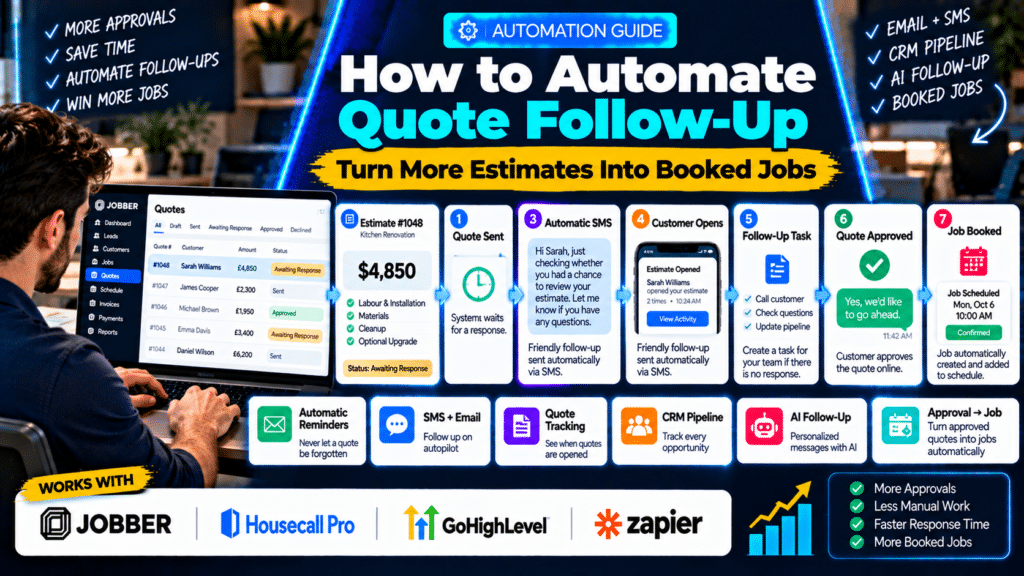
Sending a quote is not the same as winning the job.
A customer may receive your estimate and then:
- get busy;
- compare competitors;
- forget to reply;
- wait for another decision-maker;
- open the quote but take no action;
- intend to respond later.
If nobody follows up, a perfectly good lead can quietly disappear.
That is why learning how to automate quote follow-up for a service business can be one of the easiest ways to improve your sales process.
A simple automation might look like:
Quote Sent
↓
Wait 2 Days
↓
No Approval
↓
Send Reminder
↓
Wait Again
↓
Still No Response
↓
Create Sales Task
↓
Human Follow-Up
The goal is not to chase customers aggressively.
The goal is to make sure valuable estimates do not get forgotten.
Why Quote Follow-Up Matters
Service businesses often spend significant time producing estimates.
A quote may require:
- a site visit;
- measurements;
- material calculations;
- labour estimates;
- photos;
- proposal writing;
- pricing review.
Once that work is completed, leaving the quote without follow-up wastes part of that effort.
This matters particularly for higher-value services such as:
- roofing;
- landscaping;
- electrical work;
- solar;
- renovations;
- tree work;
- HVAC replacement;
- garage-door installation.
A customer may genuinely want the work but simply need a reminder.
What Is Quote Follow-Up Automation?
Quote follow-up automation is a workflow that monitors the status of an estimate and automatically takes action when the customer has not responded.
That action could be:
- sending an email;
- sending an SMS;
- resending the estimate;
- creating a CRM task;
- changing pipeline stage;
- notifying a salesperson;
- stopping when the quote is approved.
A basic workflow looks like:
Estimate Sent
↓
Wait
↓
Check:
Approved?
Yes
Stop follow-up.
No
Send reminder.
That simple logic can save a lot of manual checking.
The Best Quote Follow-Up Workflow
A good workflow should be persistent without becoming annoying.
For many service businesses, a practical sequence is:
Day 0
Send quote.
Day 2
Send first reminder.
Day 5
Send second reminder.
Day 10
Create manual sales follow-up task.
Day 14–30
Archive or move the opportunity depending on the type of work.
The exact timing should depend on the sales cycle.
An emergency repair quote should not use the same timeline as a $20,000 landscaping project.
Step 1: Send a Professional Quote
Automation cannot fix a bad quote.
Before worrying about follow-up, make sure the estimate is easy to understand.
A good quote should clearly show:
- customer name;
- work description;
- price;
- optional items;
- payment terms;
- expiry date;
- approval button;
- contact information.
Avoid vague descriptions such as:
Labour and materials — $4,200
A better quote explains what the customer is buying.
Step 2: Track the Quote Status
The automation needs to know whether the quote is still:
- awaiting response;
- approved;
- rejected;
- expired.
This is why using proper estimating or field-service software is usually better than emailing a PDF manually.
Platforms such as Jobber and Housecall Pro keep estimate status tied directly to the customer and job workflow (source: Jobber Help Center).
Option 1: Automate Quote Follow-Up in Jobber
Jobber has built-in quote follow-up automation.
Its current automation system can automatically send email or text reminders when a quote remains unanswered. Jobber says quote follow-ups are available from the Connect plan upward (source: Jobber Help Center).
How Jobber Quote Follow-Up Works
When a quote remains in awaiting response status, Jobber can send follow-ups automatically.
Jobber currently supports up to two quote reminder automations.
You can configure:
- how many days after the quote was sent;
- reminder message;
- delivery method.
The reminder uses the same communication method as the original quote.
So:
Quote sent by email → follow-up by email
and:
Quote sent by text → follow-up by text. Jobber Help Center
Example Jobber Workflow
Day 0
Quote sent.
↓
Day 2
First reminder.
↓
Day 5
Second reminder.
↓
If customer approves:
Automation stops.
That means staff do not need to search through every outstanding quote manually.
Jobber Reminder Example
Hi Sarah, just checking whether you had a chance to review the estimate we sent for your garden renovation. Let us know if you have any questions.
Keep it simple.
The goal is to reopen the conversation.
Jobber Quote Reminders vs Quote Follow-Ups
Jobber also has quote reminders for internal staff.
These are different.
A quote reminder appears on your Jobber schedule and reminds your team to follow up.
It does not contact the customer.
An automatic quote follow-up sends the actual email or text to the customer (source: Jobber Help Center).
Both can be useful.
For example:
Automatic Follow-Up
handles routine reminders.
Internal Reminder
handles high-value opportunities that deserve a personal phone call.
Jobber Custom Quote Automations
Jobber’s automation tools now extend beyond basic reminders.
Its current automation system includes capabilities such as:
- custom quote automations;
- automatically archiving old quotes;
- creating draft quotes from requests;
- high-value quote alerts (source: Jobber Help Center).
This lets businesses build more structured sales processes.
Example
Quote Value > $5,000
↓
Notify owner.
↓
Send normal automated reminders.
↓
If still unanswered after five days:
create manual call task.
That gives higher-value work more attention.
Option 2: Automate Estimate Follow-Up in Housecall Pro
Housecall Pro also offers estimate follow-up through its Pipeline system.
Its Pipeline can organize:
- leads;
- estimates;
- jobs
into sales stages and automate follow-up communication (source: Housecall Pro Help Center).
Housecall Pro Pipeline Follow-Ups
Housecall Pro’s current Pipeline automation can automatically resend an estimate after a configurable number of days.
The workflow can move through:
Estimate Sent
↓
First Follow-Up
↓
Second Follow-Up
↓
Third Follow-Up
↓
Declined / Archived
if no approval occurs.
Housecall Pro says follow-up communication can be delivered by the same email or text channel used for the original estimate (source: Housecall Pro Help Center).
Example Housecall Pro Workflow
Day 0
Estimate sent.
↓
Day 3
First follow-up.
↓
Day 7
Second follow-up.
↓
Day 14
Third follow-up.
↓
Still no response?
Move estimate out of the active sales pipeline.
This helps keep the pipeline clean.
Smart Recommendations
Housecall Pro also offers Smart Recommendations inside Pipeline.
When enabled, the system uses factors such as:
- industry;
- seasonality
to adjust estimate follow-up timing automatically.
Housecall Pro says Smart Recommendations can manage the timing of three estimate follow-ups and adjust that timing over time (source: Housecall Pro Help Center).
That is useful for businesses that do not want to manually decide every follow-up interval.
Estimate Open Notifications
Housecall Pro has also been testing notifications that tell the business when a customer first opens an estimate.
As of August 2026, this feature was still in early alpha testing and may not be available to every account (source: Housecall Pro Help Center).
If available, this can help staff follow up at a better moment.
For example:
Customer opens $12,000 roofing estimate
↓
Salesperson receives notification.
↓
Calls later that day.
That may be more effective than following up at a random time.
Automatically Create a Job After Approval
Follow-up should stop as soon as the customer says yes.
Housecall Pro now supports automatically creating a job when an estimate is approved through the Customer Portal. The feature is available across Housecall Pro plans but needs to be enabled in settings (source: Housecall Pro Help Center).
That makes the workflow:
Estimate Sent
↓
Customer Approves
↓
New Job Automatically Created
↓
Schedule Work
This reduces another manual step.
Option 3: Automate Quote Follow-Up in GoHighLevel
GoHighLevel is a strong choice when the business wants quote follow-up inside a wider CRM and marketing automation system.
HighLevel can now automatically generate and send estimates from workflow templates.
Its Send Estimate workflow action can create an estimate from a template and send it through email or text based on a workflow trigger (source: HighLevel Support Portal).
Example HighLevel Workflow
Lead Reaches “Estimate Ready” Stage
↓
Send Estimate
↓
Wait 2 Days
↓
Check:
Opportunity Stage = Won?
Yes
End workflow.
No
Send SMS reminder.
↓
Wait 3 more days.
↓
Send email follow-up.
↓
Create sales task.
This gives businesses far more control than a basic reminder system.
HighLevel Quote Follow-Up Example
Initial Estimate
Hi John, we’ve sent your estimate for the electrical work. You can review it using the link below.
First Follow-Up
Hi John, just checking whether you had a chance to review the estimate. Let us know if you have any questions.
Second Follow-Up
Hi John, just following up on your estimate. If you’d like to proceed, we can help arrange the next available appointment.
Internal Sales Task
Call John regarding outstanding electrical estimate.
Why HighLevel Is Strong for Follow-Up
The advantage is that the workflow can use more than quote status.
It can also use:
- tags;
- pipeline stages;
- lead source;
- appointment status;
- contact replies;
- SMS;
- email;
- internal notifications.
That makes it especially useful for service businesses with a more structured sales process.
Use Different Follow-Up for Different Quote Values
A $150 pressure-washing quote and a $20,000 solar installation should not necessarily receive the same sequence.
With workflow logic, you could build:
Quotes Under $1,000
Automatic follow-up only.
Quotes $1,000–$5,000
Automatic reminders + salesperson task.
Quotes Over $5,000
Automatic reminders + immediate owner notification + personal phone follow-up.
That prevents valuable opportunities from receiving only generic automation.
Option 4: Build Custom Follow-Up With Zapier
Zapier is useful when the quoting software and CRM are separate.
For example:
Jobber
HubSpot
Gmail
SMS provider
Zapier can connect those tools.
Zapier currently provides quote-management automations that can monitor quote events, delay for a set period, check deal or quote context and then send reminders or create sales opportunities (source: Zapier).
Example Zapier Workflow
Jobber Quote Sent
↓
Delay 2 Days
↓
Check quote status.
↓
If still unanswered:
Send SMS
↓
Create follow-up task.
Zapier even provides a current template specifically built around Jobber quote events that waits two days and sends a follow-up SMS through ClickSend (source: Zapier).
Custom Multi-App Workflow
A more advanced setup could look like:
Quote Sent in Field Service Software
↓
Create deal in CRM.
↓
Wait three days.
↓
Check quote status.
↓
If not approved:
send personalized email.
↓
Update deal stage.
↓
Notify salesperson.
This is useful when the business has already built its own software stack rather than using one all-in-one platform.
Should Quote Follow-Up Be Email or SMS?
Both can work.
The best channel often depends on:
- how the quote was originally sent;
- value of the job;
- customer preferences.
Email Works Well When
The quote includes:
- detailed scope;
- attachments;
- multiple decision-makers;
- commercial work.
SMS Works Well When
The customer is:
- residential;
- mobile-first;
- likely to respond quickly.
A strong strategy is often:
Quote delivered by email
short SMS reminder
rather than sending a long sales message through text.
Example SMS
Hi Alex, just checking whether you had a chance to review the quote we sent. Let us know if you have any questions.
Simple.
What Should an Automated Quote Follow-Up Say?
The message should sound like a real person.
Avoid:
THIS IS YOUR FINAL REMINDER TO APPROVE YOUR QUOTE.
Instead, write naturally.
Follow-Up Example 1: General Service Business
Hi Sarah, just checking whether you had a chance to review the estimate we sent. Let us know if you have any questions.
Follow-Up Example 2: Higher-Value Job
Hi James, I wanted to follow up on the proposal for your roof replacement. Happy to answer any questions about the scope, materials or next steps.
Follow-Up Example 3: Booking-Focused
Hi Emma, just following up on your quote. If you’d like to move forward, reply here and we’ll arrange the next available date.
Follow-Up Example 4: Final Soft Reminder
Hi David, just checking in one last time regarding the estimate we sent. If the timing isn’t right, no problem—just let us know and we can keep the details on file.
That feels much more human than aggressive sales language.
Do Not Send the Same Message Repeatedly
A good sequence should progress.
Reminder 1
Did you see the quote?
Reminder 2
Do you have any questions?
Reminder 3
Would you like help arranging the next step?
Each message should have a purpose.
Add a Human Follow-Up Step
Automation should not replace every sales conversation.
A high-value quote should eventually trigger:
Call Customer
or:
Personal Email
especially when the quote has been:
- opened;
- viewed multiple times;
- partially discussed;
- high value.
A good automation saves the salesperson’s time so they can focus on these conversations.
Quote Follow-Up Based on Customer Behaviour
The best workflows become more intelligent over time.
Imagine this:
Quote Sent
↓
Customer does not open it.
↓
Send reminder.
But another customer:
Quote Sent
↓
Customer opens it four times.
↓
No approval.
That second lead may deserve a personal call rather than another automated text.
Housecall Pro’s estimate-open notification testing reflects this trend toward behaviour-based follow-up (source: Housecall Pro Help Center).
Quote Follow-Up by Service Type
Different services have different buying cycles.
Emergency Repair
Follow up quickly.
Cleaning Quote
One or two reminders may be enough.
Landscaping Project
Allow more decision time.
Roofing
May require several touchpoints.
Solar
The buying cycle may be even longer.
Do not copy the same automation across every service without thinking about customer behaviour.
Add Quote Expiration Dates
An expiration date can create clarity.
For example:
Quote valid for 30 days.
This can be useful when:
- material pricing changes;
- labour capacity changes;
- seasonal demand changes.
But avoid using fake urgency.
Only use expiry dates when they reflect the real business process.
Automate Optional Upsell Follow-Up
If the customer approves the main work but ignores an optional upgrade, you may be able to follow up differently.
For example:
Main Service Approved
Optional Gutter Cleaning Not Selected
Instead of continuing to chase the whole quote, stop.
The customer has already bought.
Do not let automation confuse an accepted sale with an unfinished upsell.
What Happens After a Quote Is Approved?
A complete automation should not stop at:
Approved.
It should move into operations.
For example:
Quote Approved
↓
Create Job
↓
Notify Office
↓
Send Confirmation
↓
Schedule Work
↓
Collect Deposit if Required
Housecall Pro can automatically create a new job when a customer approves an estimate (source: Housecall Pro Help Center).
This reduces the gap between sales and operations.
What Happens When a Quote Is Rejected?
Do not continue sending reminders after the customer rejects the quote.
Instead:
Quote Rejected
↓
Stop Follow-Up
↓
Record Reason
Possible reasons:
- price;
- timing;
- competitor;
- changed plans;
- no longer needed.
This information can help improve future sales.
What Happens When There Is No Response?
Eventually, the automation should stop.
Do not keep sending messages forever.
A sensible final state might be:
No Response After 30 Days
↓
Archive Estimate
↓
Move Opportunity to “Lost / No Response”
Jobber can automatically archive quotes that remain unanswered for a chosen period (source: Jobber Help Center).
Housecall Pro’s Pipeline can also move estimates through multiple follow-up states and ultimately decline or archive them (source: Housecall Pro Help Center).
How to Prioritize High-Value Quotes
Not every outstanding quote deserves equal attention.
Create a rule such as:
Quote > $5,000
↓
Notify salesperson.
or:
Quote > $10,000
↓
Owner receives notification.
Jobber currently includes automation options for notifying users about new high-value quotes (source: Jobber Help Center).
This helps the team focus on opportunities that matter most.
Track Quote Conversion Rate
A follow-up system should improve a measurable number.
The most important metric is:
Quote Conversion Rate
Formula:
Approved Quotes ÷ Total Quotes Sent × 100
For example:
100 quotes sent.
35 approved.
Conversion rate:
35%
Then automate follow-up and compare the next period.
If conversion rises to:
42%
the automation may be contributing real value.
Other Useful Metrics
Track:
- quotes sent;
- average quote value;
- first follow-up response rate;
- approval rate;
- time to approval;
- lost quote reasons;
- revenue won from followed-up quotes.
Do not measure only how many emails were sent.
Measure business outcomes.
Example Workflow for a Plumber
Boiler Replacement Quote Sent
↓
Wait 2 days.
↓
SMS:
Hi John, just checking whether you had a chance to review the boiler replacement estimate.
↓
No response.
↓
Wait 3 days.
↓
Email with link to quote.
↓
Still no response.
↓
Create task:
Call John
Example Workflow for a Landscaper
£8,000 Garden Project Quote Sent
↓
Wait 3 days.
↓
Email:
Hi Sarah, just checking whether you’ve had a chance to review the garden project proposal. Happy to talk through any of the options.
↓
Customer opens quote.
↓
Salesperson receives notification.
↓
Personal call.
For a larger project, personal contact matters more.
Example Workflow for a Pressure-Washing Company
Driveway Quote Sent
↓
Wait 2 days.
↓
SMS:
Hi Alex, just checking whether you’d like us to reserve a date for the driveway cleaning quote we sent.
↓
Customer approves.
↓
Automation stops.
↓
Job created.
Simple and effective.
Example Workflow for a Roofing Company
Roof Replacement Estimate Sent
↓
Wait 2 days.
↓
Email reminder.
↓
Wait 4 days.
↓
SMS reminder.
↓
Quote value over $10,000.
↓
Owner receives task:
Call customer personally.
This combines automation with human sales.
Common Quote Follow-Up Mistakes
Sending Too Many Messages
Automation can easily become spam.
More reminders do not automatically mean more sales.
Following Up After Approval
Always use status conditions.
Following Up After Rejection
Stop immediately.
Using Generic Messages
Include:
- customer name;
- service;
- quote context
where possible.
No Human Escalation
High-value opportunities deserve human attention.
Waiting Too Long
If the customer receives a quote and hears nothing for three weeks, momentum may be gone.
Using Only One Channel
Sometimes:
email + short SMS
works better than email alone.
Not Tracking Results
If you do not measure quote conversion, you cannot know whether the workflow helps.
Best Tools for Quote Follow-Up Automation
Jobber
Best when your service business already uses Jobber for:
- quotes;
- jobs;
- scheduling;
- invoices.
Its built-in quote follow-ups reduce the need for external automation (source: Jobber Help Center).
Housecall Pro
Best when you want estimate follow-up inside a visual sales Pipeline with multiple follow-up stages and optional Smart Recommendations (source: Housecall Pro Help Center).
GoHighLevel
Best when you want:
- CRM;
- SMS;
- email;
- pipeline;
- quote workflows;
- custom automation
inside the same sales system. Its workflow system can now automatically create and send estimates from templates (source: HighLevel Support Portal).
Zapier
Best when your estimate, CRM and communication tools are separate.
Zapier can monitor quote events, delay outreach and trigger email, SMS or CRM actions across different apps (source: Zapier).
Related guides
- How to Automate Invoice Reminders for a Service Business in 2026
- How to Automate Review Requests for a Service Business in 2026
- How to Automate Appointment Reminders for a Service Business in 2026
- Tools, Software and Automation for Trades: Start Here
Frequently Asked Questions
What is quote follow-up automation?
Quote follow-up automation automatically reminds customers when an estimate has been sent but has not yet been approved or rejected.
It can use:
- email;
- SMS;
- CRM tasks;
- pipeline updates.
Does Jobber automatically follow up quotes?
Yes. Jobber can automatically send up to two email or text follow-ups for quotes that remain in awaiting-response status. Quote follow-ups are currently available from Connect upward (source: Jobber Help Center).
Does Housecall Pro automate estimate follow-up?
Yes. Housecall Pro’s Pipeline can automatically resend estimates through multiple follow-up stages and update pipeline status. It also offers Smart Recommendations for follow-up timing in supported accounts (source: Housecall Pro Help Center).
Can GoHighLevel send estimates automatically?
Yes. HighLevel’s Send Estimate workflow action can generate an estimate from a template and send it to the customer by email or text (source: HighLevel Support Portal).
Can Zapier automate quote follow-up?
Yes. Zapier can connect quote systems, delays, CRM tools, email and SMS platforms. It currently provides workflows specifically designed for delayed quote follow-up (source: Zapier).
How long should I wait before following up on a quote?
For many normal service quotes, one to three days is a reasonable starting point.
Higher-value projects may require a longer and more personal sales process.
Test timing based on your own customers rather than treating one schedule as universal.
How many times should I follow up a quote?
For many service businesses:
two to three follow-ups is a reasonable maximum before moving the lead into manual review or a lost/no-response stage.
The right number depends on:
- job value;
- service type;
- urgency;
- sales cycle.
Should quote follow-up be automated?
Routine reminders are well suited to automation.
High-value, complex or sensitive opportunities should still receive human sales attention.
Conclusion
Learning how to automate quote follow-up for a service business is one of the simplest ways to create a more consistent sales process.
The basic workflow is:
Quote Sent → Wait → Check Status → Send Reminder → Human Follow-Up
You do not need complicated AI to make this work.
Jobber already includes automated quote follow-up for unanswered estimates and can send reminders using the same communication channel as the original quote (source: Jobber Help Center).
Housecall Pro goes further with a sales Pipeline that can move estimates through several follow-up stages and use Smart Recommendations to adjust reminder timing (source: Housecall Pro Help Center).
GoHighLevel is useful when you want deeper control over:
- CRM stages;
- SMS;
- email;
- estimate delivery;
- sales tasks.
Its current workflow system can generate and send estimates automatically from templates (source: HighLevel Support Portal).
And Zapier is a flexible option when quoting, CRM and communication happen in separate applications (source: Zapier).
The most important principle is:
Do not let a sent quote become a forgotten quote.
Turn the sales process into:
Quote → Reminder → Conversation → Decision
And when the customer says yes:
Approval → Job → Schedule → Payment
Automation should handle the repetitive reminders.
Your team should spend its time on the conversations that actually need a human.


2 thoughts on “How to Automate Quote Follow-Up for a Service Business in 2026”
Pingback: AI for Small Service Businesses: A Practical Guide
Pingback: ChatGPT for Contractors: Prompts for Quotes & Emails