A scheduled job is not the same as a completed job.
A customer may:
- forget the appointment;
- leave the property;
- forget to unlock a gate;
- miss a technician’s call;
- assume the appointment is on a different day;
- forget to prepare the site.
For a service business, that can lead to:
- wasted travel;
- lost technician time;
- rescheduling;
- lower daily capacity;
- frustrated customers.
That is why learning how to automate appointment reminders for a service business can be one of the simplest ways to improve operations.
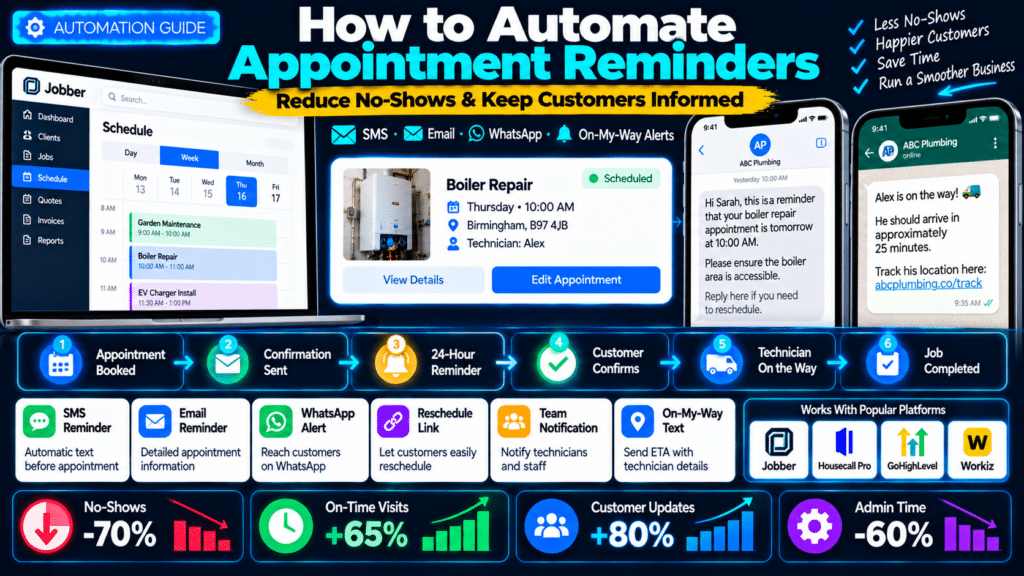
A useful reminder workflow looks like this:
Job Booked
↓
Booking Confirmation
↓
Reminder 24 Hours Before
↓
Reminder / ETA on Job Day
↓
Technician On the Way
↓
Job Completed
The important part is that these messages happen automatically.
Your office should not need to manually text every customer before every job.
What Is Appointment Reminder Automation?
Appointment reminder automation means using software to automatically notify a customer before a scheduled:
- job;
- visit;
- assessment;
- appointment;
- maintenance service.
The reminder may be sent by:
- SMS;
- email;
- WhatsApp;
- push notification.
A simple version is:
Appointment Tomorrow → Send SMS
A more advanced version can include:
Appointment Booked
↓
Send Confirmation
↓
24-Hour Reminder
↓
Customer Confirms
↓
Technician Assigned
↓
On-My-Way Text
This creates a more predictable experience for both the customer and the business.
Why Appointment Reminders Matter for Service Businesses
A missed appointment is more expensive for a field-service business than it is for many online businesses.
A technician may already have:
- driven to the property;
- blocked out an hour;
- carried equipment;
- prepared parts.
If the customer is not available, the business cannot always recover that time.
Appointment reminders can help customers remember:
- the date;
- the time;
- who is coming;
- what they need to prepare.
They also reduce unnecessary office calls such as:
What time are you coming tomorrow?
Booking Confirmation vs Appointment Reminder
These are not the same thing.
Booking Confirmation
Sent when the appointment is first scheduled.
Its job is to say:
“You are booked.”
Appointment Reminder
Sent closer to the appointment.
Its job is to say:
“Your appointment is coming up.”
Jobber makes this distinction clearly. Its booking confirmation is generally a one-time notification when work is booked, while appointment reminders can continue for upcoming visits (source: Jobber Help Center).
Both are useful.
A Good Reminder Workflow
For many service businesses, a simple sequence is enough.
Immediately After Booking
Send confirmation.
24 Hours Before
Send reminder.
1–2 Hours Before
Optional reminder for appointment-based services.
When Technician Leaves
Send an on-my-way message.
The exact timing depends on the service.
A cleaning business may only need:
day-before reminder.
An emergency repair company may rely more on:
same-day ETA updates.
Option 1: Automate Appointment Reminders in Jobber
Jobber supports automated assessment and visit reminders by:
- email;
- text;
- or both.
These reminders can be scheduled automatically before the technician arrives (source: Jobber Help Center).
That makes Jobber a strong option for businesses already managing jobs and schedules inside the platform.
How Jobber Appointment Reminders Work
Jobber can notify customers before:
- scheduled visits;
- assessments.
The system can send reminders automatically according to the schedule configured by the business (source: Jobber Help Center).
Example
Monday
Customer books boiler repair for Thursday.
↓
Booking confirmation sent.
↓
Wednesday
24-hour reminder sent.
↓
Thursday
Technician arrives.
This removes repetitive admin.
Email and Text Reminders
Jobber lets businesses use:
- email;
- SMS;
- both
for visit and assessment reminders (source: Jobber Help Center).
That is useful because customers do not all communicate the same way.
Some respond quickly to text.
Others prefer email.
Manual Reminders
Jobber also lets users send reminders manually when needed (source: Jobber Help Center).
This can be useful for:
- unusual jobs;
- high-value appointments;
- customers needing special instructions.
Automation should handle the normal process.
Manual messaging should handle exceptions.
Rescheduling Notifications
If an appointment changes, customers should know.
Jobber’s reminder and notification system also supports rescheduling communication as part of its client-notification workflow (source: Jobber Help Center).
That helps prevent situations where the office reschedules work but the customer still expects the original date.
Team Reminders
Customer reminders are only half the process.
Your technicians also need to know where they are going.
Jobber can send team members email reminders about upcoming assignments and new jobs added to their schedule (source: Jobber Help Center).
That creates two-way operational clarity:
Customer knows technician is coming
and:
Technician knows where to go.
Best For
Jobber appointment reminders may work well for:
- cleaning;
- landscaping;
- electrical;
- plumbing;
- pool service;
- pressure washing;
- window cleaning;
- recurring service businesses.
Option 2: Automate Job Reminders in Housecall Pro
Housecall Pro provides automated customer notifications around:
- scheduled jobs;
- reminders;
- on-my-way updates;
- completed work.
Its reminder system can send SMS messages automatically before upcoming jobs (source: Housecall Pro Help Center).
Housecall Pro SMS Job Reminders
Housecall Pro’s current SMS reminder system lets businesses choose:
- how many days before the appointment;
- what time the reminder should send.
The default currently shown in Housecall Pro’s documentation is:
9:00 AM, one day before the job. Housecall Pro Help Center
Businesses can change that timing.
Example
A customer has an appointment Friday at 2 PM.
Housecall Pro can send:
Thursday at 9 AM
Hi Sarah, this is a reminder that ABC Plumbing is scheduled to visit tomorrow.
The exact message can be customized.
Housecall Pro Customer Notifications
Housecall Pro’s notification settings let businesses control automated communications for:
- scheduled jobs;
- on-my-way messages;
- other job events.
The platform also allows businesses to choose communication channels such as email or text for supported notifications (source: Housecall Pro Help Center).
On-My-Way Notifications
An appointment reminder tells the customer:
the job is coming.
An on-my-way message tells them:
the technician is actually coming now.
Housecall Pro supports on-my-way texts as part of its automated job communication (source: Housecall Pro Help Center).
That is especially useful when the customer needs to:
- return home;
- open a gate;
- secure pets;
- prepare access.
Email Job Reminders
Housecall Pro has also been testing email reminders alongside SMS.
Its August 2026 documentation says users in the early alpha can configure email reminders separately from text reminders, including independent timing (source: Housecall Pro Help Center).
Because this feature is still in early alpha, it may not be available to every account yet.
Service Plan Reminders
Housecall Pro also supports reminders for recurring service plans.
These can notify customers before:
- their next service;
- plan renewal.
The business can choose reminders days, weeks or months before the relevant date (source: Housecall Pro Help Center).
That is useful for:
- HVAC maintenance;
- plumbing service agreements;
- recurring cleaning;
- pest control;
- pool service.
Best For
Housecall Pro reminders may be particularly useful for:
- home-service teams;
- HVAC;
- plumbing;
- electrical;
- recurring maintenance companies.
Option 3: Automate Appointment Reminders in GoHighLevel
GoHighLevel is useful when appointment reminders need to connect to a larger:
- CRM;
- SMS;
- email;
- WhatsApp;
- sales automation system.
HighLevel’s calendar notifications can send reminders and follow-ups through several channels.
Its current notification system supports:
- email;
- SMS;
- WhatsApp;
- in-app notifications
for events such as:
- bookings;
- cancellations;
- rescheduling;
- reminders;
- follow-ups (source: HighLevel Support Portal).
Why HighLevel Is Flexible
Instead of only sending one preset reminder, HighLevel can build a full appointment journey.
For example:
Appointment Booked
↓
Send SMS confirmation.
↓
Wait until 24 hours before appointment.
↓
Send email reminder.
↓
Wait until 2 hours before appointment.
↓
Send SMS reminder.
↓
Appointment completed.
↓
Send review request.
This is where HighLevel becomes more powerful than a basic reminder toggle.
Appointment Status Trigger
HighLevel has an Appointment Status workflow trigger.
It can start automation when an appointment is:
- scheduled;
- confirmed;
- changed.
This allows workflows to react automatically to appointment-status changes (source: HighLevel Support Portal).
Example
Appointment Status = Confirmed
↓
Send confirmation.
↓
Wait.
↓
Send reminder.
↓
Notify technician.
Wait Actions Around Appointments
HighLevel’s Wait action can pause a workflow relative to an appointment.
It can wait:
- a fixed amount of time;
- until a specific time;
- relative to a booking;
- until another condition is met (source: HighLevel Support Portal).
That makes workflows like this possible:
Wait until 24 hours before appointment
↓
Send SMS.
Then:
Wait until 2 hours before appointment
↓
Send reminder.
Reminder Channels
HighLevel currently supports appointment notifications through:
- email;
- SMS;
- WhatsApp;
- in-app channels (source: HighLevel Support Portal).
That is particularly useful for businesses operating in markets where WhatsApp is common.
AI Appointment Booking
HighLevel can also combine reminders with conversational AI.
Its current Conversation AI booking workflow can:
- check available time slots;
- guide a contact through scheduling;
- book the appointment automatically (source: HighLevel Support Portal).
That means the workflow can become:
Lead
↓
AI Books Appointment
↓
Confirmation
↓
Reminder
↓
Follow-Up
all inside one system.
Best For
HighLevel may suit:
- lead-generation businesses;
- agencies;
- companies heavily using SMS;
- businesses wanting reminders connected to CRM automation.
Option 4: Automate Appointment Reminders in Workiz
Workiz has dedicated automation tools for reminding clients about upcoming jobs.
Its automation templates allow businesses to customize:
- SMS;
- email;
- reminder timing;
- conditions;
- message content (source: Workiz Help Center).
Workiz Appointment Reminder Workflow
A business can create a rule such as:
Job is scheduled
↓
Send reminder:
1 day before
or:
2 hours before
The reminder can use:
- text;
- email;
- both (source: Workiz Help Center).
Flexible Timing
Workiz’s current reminder automation allows timing such as:
- 14 days ahead;
- 30 minutes ahead;
- other custom intervals (source: Workiz Help Center).
That makes it useful for different service models.
Example: Roofing Survey
Send reminder:
2 days before
because the appointment was booked weeks ago.
Example: Locksmith Follow-Up Visit
Send reminder:
1 hour before
because the job is same-day.
Conditional Reminders
Workiz can also use conditions.
For example:
Only send this reminder if:
- client has a certain tag;
- job meets a specific condition.
This makes the system more flexible than sending exactly the same reminder to every customer (source: Workiz Help Center).
Workiz Automations
Workiz describes its automation system as a way to handle repetitive tasks such as:
- appointment reminders;
- estimate follow-up;
- invoice alerts (source: Workiz).
That makes reminders part of a larger automation workflow rather than an isolated feature.
Rescheduled Job Notifications
Workiz has also tested automated notifications when jobs are rescheduled.
Its help documentation says businesses in the beta can trigger notifications when the schedule changes, with delayed automations based on the most recent reschedule (source: Workiz Help Center).
Because this is described as beta functionality, availability may vary.
Service Plan Reminders
Workiz can also automate service-plan reminders before:
- scheduled visits;
- plan expiration;
- renewal (source: Workiz Help Center).
This makes it useful for recurring-service businesses.
Best For
Workiz reminders may fit:
- dispatch-heavy teams;
- appliance repair;
- locksmiths;
- garage-door companies;
- recurring service businesses;
- multi-technician operations.
Which Reminder Tool Is Best?
The answer depends on the rest of your software stack.
Choose Jobber When
You already use Jobber for:
- scheduling;
- recurring jobs;
- quoting;
- invoicing.
Its built-in visit and assessment reminders are simple and tightly connected to field-service workflows.
Choose Housecall Pro When
You want:
- scheduled job reminders;
- on-my-way messages;
- service-plan reminders;
- strong home-service customer communication.
Choose GoHighLevel When
You want:
- multi-step workflows;
- SMS;
- email;
- WhatsApp;
- CRM;
- custom appointment automation.
Choose Workiz When
You want:
- flexible job reminders;
- dispatch;
- field-service automation;
- conditions;
- recurring-service reminders.
SMS vs Email Appointment Reminders
Both can work well.
SMS Is Best When
The reminder is short and time-sensitive.
Example:
Hi Sarah, reminder that ABC Plumbing is scheduled tomorrow between 10 AM and 12 PM.
SMS is particularly useful when:
- customers are mobile;
- appointments are near-term;
- access instructions matter.
Email Is Best When
The customer needs more information.
For example:
- preparation instructions;
- documents;
- parking information;
- terms.
A useful combination is often:
Email confirmation at booking
plus:
SMS reminder before the visit.
WhatsApp Reminders
In markets where WhatsApp is widely used, it can be another useful channel.
HighLevel currently supports WhatsApp appointment notifications alongside SMS and email (source: HighLevel Support Portal).
Before using WhatsApp or SMS automation, make sure your messaging setup complies with applicable:
- consent;
- platform;
- carrier;
- regional rules.
What Should an Appointment Reminder Say?
Keep it short and useful.
A good reminder should include:
- business name;
- date;
- time or window;
- service;
- contact option.
Example 1: General Service Reminder
Hi Sarah, this is a reminder that ABC Plumbing is scheduled to visit tomorrow between 10 AM and 12 PM. Reply here if you need to reschedule.
Example 2: Cleaning Business
Reminder: Bright Cleaning is booked for tomorrow at 9 AM. Please ensure we can access the property when the team arrives.
Example 3: Electrician
Hi James, ABC Electrical is scheduled for your EV charger installation tomorrow at 8:30 AM. Please ensure access to the consumer unit and parking area.
Example 4: Appointment Window
Hi Emma, your service appointment is tomorrow between 1 PM and 3 PM. We’ll message again when the technician is on the way.
Include Preparation Instructions When Needed
Reminders are especially useful when the customer needs to do something before arrival.
Examples:
Plumber
Please make sure the boiler area is accessible.
Cleaner
Please provide access and secure pets before the team arrives.
Pressure Washer
Please move vehicles from the driveway before 9 AM.
Electrician
Please make sure someone over 18 is present to provide access.
This can reduce delays on-site.
Do Not Overload the Message
Avoid sending a reminder like:
Hello Sarah. This is ABC Plumbing confirming your appointment scheduled for Thursday 17 October at 10:30 AM. Please review our terms, prepare access, confirm parking, send photos, review our cancellation policy…
That belongs in an email.
SMS should usually stay concise.
Should Customers Confirm Appointments?
For some businesses, yes.
A reminder could say:
Reply YES to confirm.
This is particularly useful when:
- appointments are long;
- travel distance is significant;
- missed visits are expensive.
But confirmation adds another workflow state.
Your system needs to handle:
YES
and:
No response
and:
Reschedule
Do not ask customers to confirm if nobody is monitoring the replies.
What Happens if the Customer Wants to Reschedule?
The reminder should make rescheduling easy.
For example:
Reply here or call 01234 567890 if you need to change the appointment.
HighLevel can automate actions based on appointment status changes, including rescheduling workflows (source: HighLevel Support Portal).
Housecall Pro also provides automated customer notifications around scheduled-job changes (source: Housecall Pro Help Center).
Do Not Send Old Reminders After Rescheduling
This is one of the most important automation rules.
Imagine:
Original appointment: Monday
Customer moves it to:
Wednesday
The system should not still send:
See you Monday.
Your reminder platform should use the current appointment data rather than a static date copied into an old automation.
Platforms with appointment-aware workflows help avoid this problem.
Appointment Reminders for Recurring Services
Recurring businesses benefit heavily from automation.
Examples:
- weekly cleaning;
- monthly pest control;
- pool maintenance;
- HVAC service plans;
- window cleaning.
The workflow can become:
Recurring Job Scheduled
↓
Reminder
↓
Visit
↓
Next Visit Automatically Scheduled
This can eliminate huge amounts of repetitive admin.
Example for a Cleaning Business
Every Monday at 9 AM
↓
Sunday 5 PM:
Reminder: Bright Cleaning is scheduled tomorrow at 9 AM.
↓
Monday 8:30 AM:
Your cleaner is on the way.
Simple.
Example for HVAC Maintenance
Annual Maintenance Due
↓
Two weeks before:
Your annual HVAC service is due. Book your preferred appointment.
↓
Customer books.
↓
24 hours before:
Appointment reminder.
Housecall Pro specifically supports service-plan scheduling and renewal reminders for these kinds of recurring workflows (source: Housecall Pro Help Center).
Example for Pool Service
Weekly Visit
↓
Day before:
Your pool service is scheduled tomorrow.
↓
Technician arrives.
↓
Job completed.
This is where automation creates consistency at scale.
Appointment Reminders for Long Booking Windows
Some jobs are booked:
- weeks;
- months
in advance.
In those cases, one reminder may not be enough.
A better sequence could be:
7 Days Before
Email reminder.
24 Hours Before
SMS reminder.
On the Day
On-my-way message.
This is particularly useful for:
- installations;
- surveys;
- commercial work;
- high-value projects.
Appointment Reminders for Same-Day Jobs
Same-day service needs a different workflow.
For example:
10:00 AM
Appointment booked for 2 PM.
Do not send:
24-hour reminder.
Instead:
immediate confirmation
↓
1-hour reminder
↓
on-my-way update
Your automation should account for short lead times.
Add Technician Information
Some businesses include:
- technician name;
- photo;
- estimated arrival.
For example:
Alex is on the way and should arrive in approximately 25 minutes.
This can make the customer feel more comfortable and reduce uncertainty.
Add Internal Team Notifications
Reminder automation can also notify employees.
For example:
Tomorrow’s high-value installation
↓
Notify technician:
EV charger installation at 8 AM. Parts confirmed.
Jobber supports team-assignment reminders for upcoming work (source: Jobber Help Center).
Internal reminders can be just as valuable as customer reminders.
Appointment Reminders vs On-My-Way Messages
These solve different problems.
Appointment Reminder
Prevents forgetting.
On-My-Way Message
Sets arrival expectations.
A strong service experience often uses both.
For example:
Day Before
Reminder: Your appointment is tomorrow.
Day Of
Alex is on the way.
Housecall Pro supports both scheduled customer reminders and on-my-way messages (source: Housecall Pro Help Center).
Appointment Reminders vs Booking Confirmations
Again, do not confuse these.
A confirmation should go out:
when booked.
A reminder should go out:
before the appointment.
Jobber specifically recommends pairing booking confirmations with visit reminders to keep customers informed from booking through arrival (source: Jobber Help Center).
How Many Appointment Reminders Should You Send?
For many normal service businesses:
one reminder 24 hours before
is enough.
For higher-value or long-booked appointments:
two reminders
may be useful.
For example:
- one week before;
- one day before.
Avoid sending:
- five texts;
- three emails;
- two WhatsApps
for the same ordinary appointment.
Automation should reduce friction, not create annoyance.
What Time Should Reminders Be Sent?
Avoid sending non-urgent reminders:
- very early;
- very late.
Housecall Pro’s default current SMS reminder timing is 9:00 AM one day before the appointment, although businesses can customize it (source: Housecall Pro Help Center).
A reasonable window for many businesses is:
morning or early afternoon
the day before.
The best timing depends on customer behavior.
Use Time Zones Correctly
This is especially important if the business operates across:
- regions;
- states;
- time zones.
Reminder systems should use the appointment or business time zone correctly.
Housecall Pro, for example, bases its configured reminder timing on the company-profile address time zone (source: Housecall Pro Help Center).
Test this before running automation at scale.
How to Reduce No-Shows With Reminders
A good reminder should make the next step clear.
Instead of:
Appointment reminder.
Use:
Your appointment is tomorrow at 10 AM. Reply here if you need to reschedule.
That gives the customer an easy action.
It is better to reschedule in advance than discover an empty property after the technician arrives.
How to Track Reminder Performance
Track:
Appointment Count
How many appointments were scheduled?
Reminder Delivery
How many reminders were delivered?
Confirmation Rate
How many customers confirmed?
Reschedule Rate
How many rescheduled before the visit?
No-Show Rate
How many customers were unavailable?
Wasted Trips
How many technicians arrived without access?
Compare these metrics:
before automation
vs:
after automation.
That tells you whether reminders are improving operations.
Common Appointment Reminder Mistakes
Sending Too Many Messages
More is not always better.
Using the Wrong Date After Rescheduling
Reminder data should stay synchronized.
No Reschedule Option
Make it easy for customers to change plans.
Sending Messages at Bad Times
Avoid late-night reminders.
Generic Messages
Include useful context.
No Internal Notifications
Technicians also need to know what is happening.
No Confirmation Process
If confirmation matters, track it properly.
Asking Customers to Reply When Nobody Monitors Replies
That creates a bad experience.
Best Appointment Reminder Tools for Service Businesses
Jobber
Best when you want reminders directly connected to:
- jobs;
- assessments;
- recurring visits.
Jobber supports automated email and text visit reminders (source: Jobber Help Center).
Housecall Pro
Best when you want:
- SMS reminders;
- on-my-way messages;
- recurring service-plan reminders;
- broader home-service customer notifications (source: Housecall Pro Help Center).
GoHighLevel
Best when you want:
- SMS;
- email;
- WhatsApp;
- multiple reminder stages;
- advanced CRM workflows (source: HighLevel Support Portal).
Workiz
Best when you want customizable field-service automation around:
- upcoming jobs;
- technician scheduling;
- recurring service plans;
- dispatch (source: Workiz Help Center).
Related guides
- How to Automate Invoice Reminders for a Service Business in 2026
- How to Automate Review Requests for a Service Business in 2026
- How to Automate Quote Follow-Up for a Service Business in 2026
- Tools, Software and Automation for Trades: Start Here
Frequently Asked Questions
What is appointment reminder automation?
Appointment reminder automation automatically sends customers notifications before scheduled work.
Messages can be delivered through:
- SMS;
- email;
- WhatsApp;
- other supported channels.
Does Jobber send automatic appointment reminders?
Yes. Jobber can automatically send assessment and visit reminders by email, text or both according to a configured schedule (source: Jobber Help Center).
Does Housecall Pro send job reminders?
Yes. Housecall Pro supports automated SMS job reminders and lets businesses customize how many days before the job and what time they are sent (source: Housecall Pro Help Center).
Can Housecall Pro send email appointment reminders?
Housecall Pro has been testing customizable email job reminders in early alpha as of August 2026. Availability may vary by account (source: Housecall Pro Help Center).
Can GoHighLevel automate appointment reminders?
Yes. HighLevel supports customizable appointment notifications through email, SMS, WhatsApp and in-app channels, as well as appointment-triggered workflows (source: HighLevel Support Portal).
Does Workiz send automated appointment reminders?
Yes. Workiz Automations can send text and/or email reminders before upcoming jobs, with customizable timing and conditions (source: Workiz Help Center).
When should I send an appointment reminder?
For many service businesses, 24 hours before the appointment is a good starting point.
Long-booked or high-value appointments may benefit from an additional reminder several days earlier.
Should I send reminders by SMS or email?
SMS is useful for short, time-sensitive reminders.
Email is better for longer information or preparation instructions.
Many businesses use both.
Should I send an on-my-way text too?
Often, yes.
The appointment reminder helps the customer remember the job.
The on-my-way message tells them when the technician is actually approaching.
Can appointment reminders reduce no-shows?
They can reduce forgotten appointments and improve advance rescheduling, especially when messages are clear and timely.
Actual results depend on:
- customer behavior;
- service type;
- reminder timing;
- communication quality.
Conclusion
Learning how to automate appointment reminders for a service business is one of the easiest ways to make scheduling more reliable.
The basic workflow is:
Job Booked → Confirmation → Reminder → On-My-Way Message → Completed Job
You do not need a complicated AI system.
You simply need a consistent communication process.
Jobber is a strong option for businesses that want reminders tied directly to field-service visits and assessments, with automated email and SMS notifications (source: Jobber Help Center).
Housecall Pro is especially useful for home-service businesses that want customizable SMS reminders, on-my-way notifications and recurring service-plan communication (source: Housecall Pro Help Center).
GoHighLevel gives businesses more control over multi-step workflows using SMS, email, WhatsApp and appointment-status automation (source: HighLevel Support Portal).
And Workiz provides flexible appointment reminder automations that can send text or email based on timing and conditions defined by the business (source: Workiz Help Center).
The most important principle is simple:
Do not make customers remember everything themselves.
Use automation to guide them through:
Booked → Reminded → Prepared → Technician Arrives
That saves office time, improves customer communication and reduces avoidable disruption to the schedule.